
Configure an I2C peripheral with the Devicetree Manager
This tutorial configures an I2C controller on an STM32 board with the Devicetree Manager for Zephyr, from a disabled peripheral to a generated board overlay. The example uses i2c2 on a Nucleo H563ZI, and the same flow works on any STM32 board.
The Devicetree Manager guides you: enable a peripheral and it flags whatever is still missing until every required field and signal is set.
Before you start
Install and open the Devicetree Manager as shown in Installing the Devicetree Manager for Zephyr. If you are new to Zephyr on STM32, start with Getting started with Workbench for Zephyr.
1. Pick the peripheral
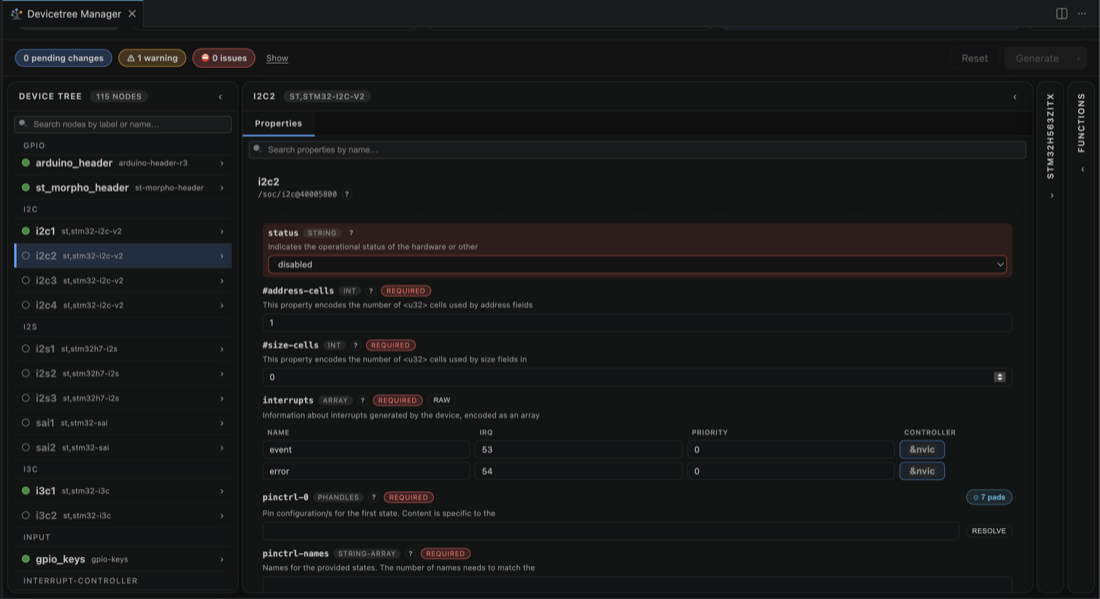
Build your application at least once, then open the Devicetree Manager. In the device tree on the left, select the I2C controller, here i2c2. On a fresh board it is disabled.
2. Enable it
In the Properties pane, set status to okay.
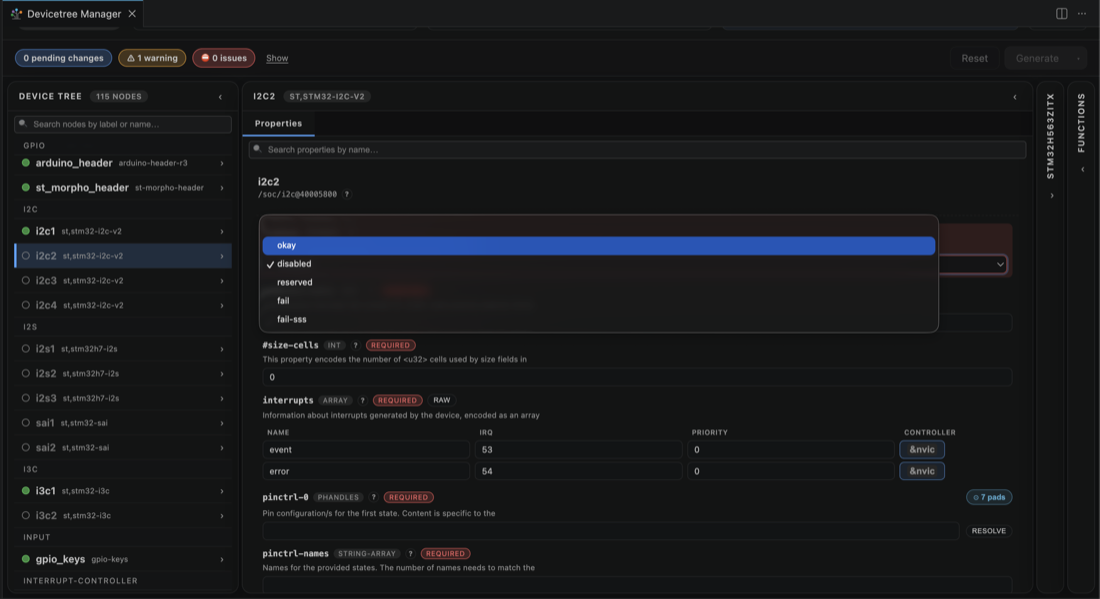
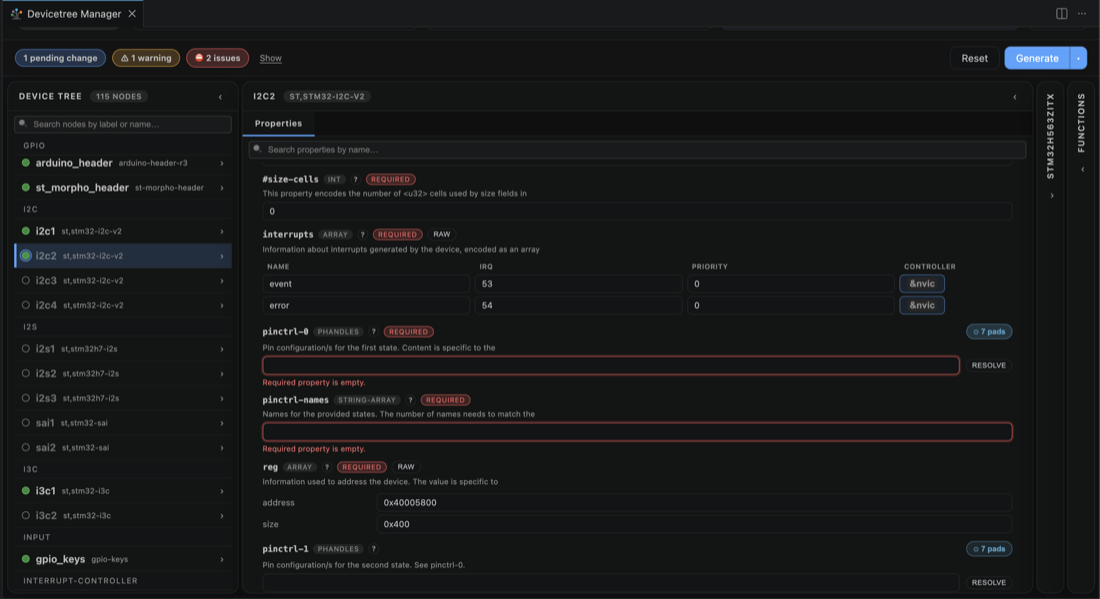
The peripheral now needs its pins, so the header reports issues: the required pinctrl-0 and pinctrl-names are still empty.
3. Assign the clock (SCL)
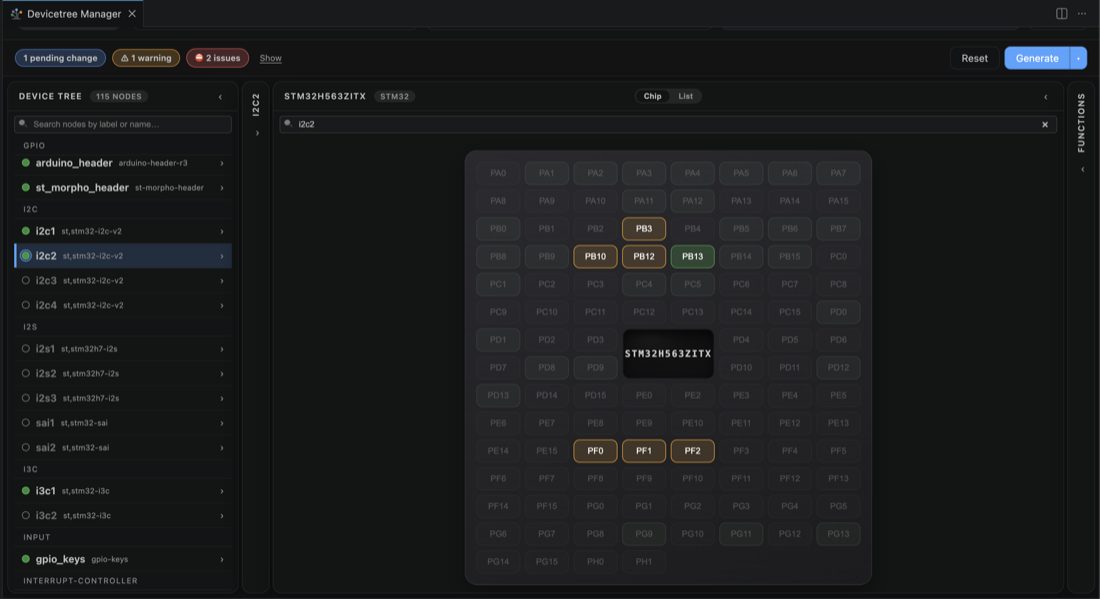
Switch to the Chip view. The pads that can carry the i2c2 signals light up. Click one, here PB10, and pick the I2C2 SCL function.
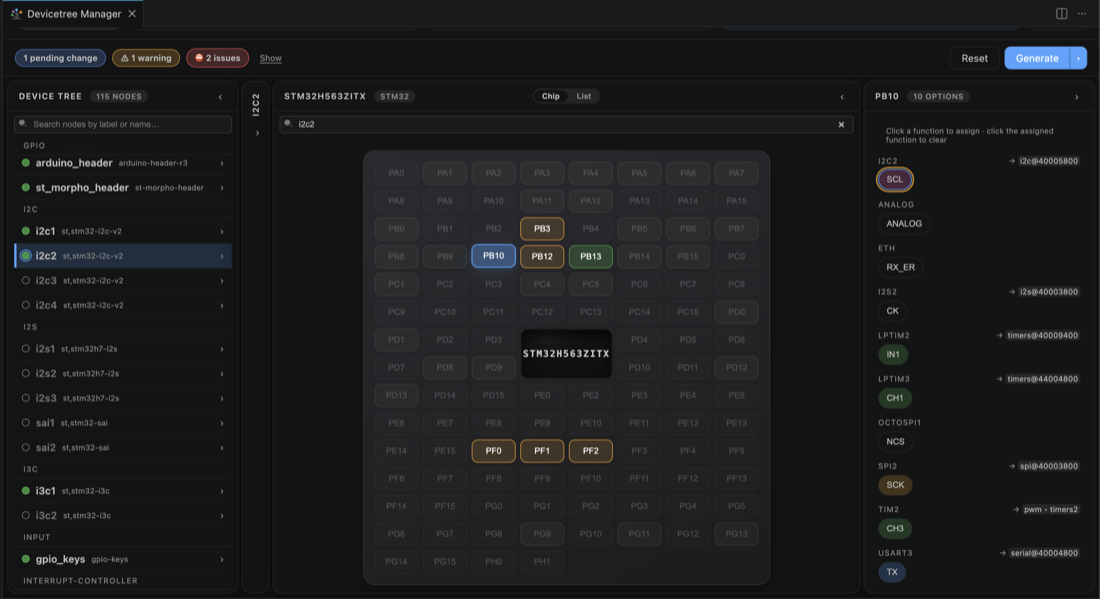
4. Assign the data (SDA)
Click another highlighted pad, here PB3, and pick I2C2 SDA. With both signals set the header reads 0 issues and the peripheral is ready.
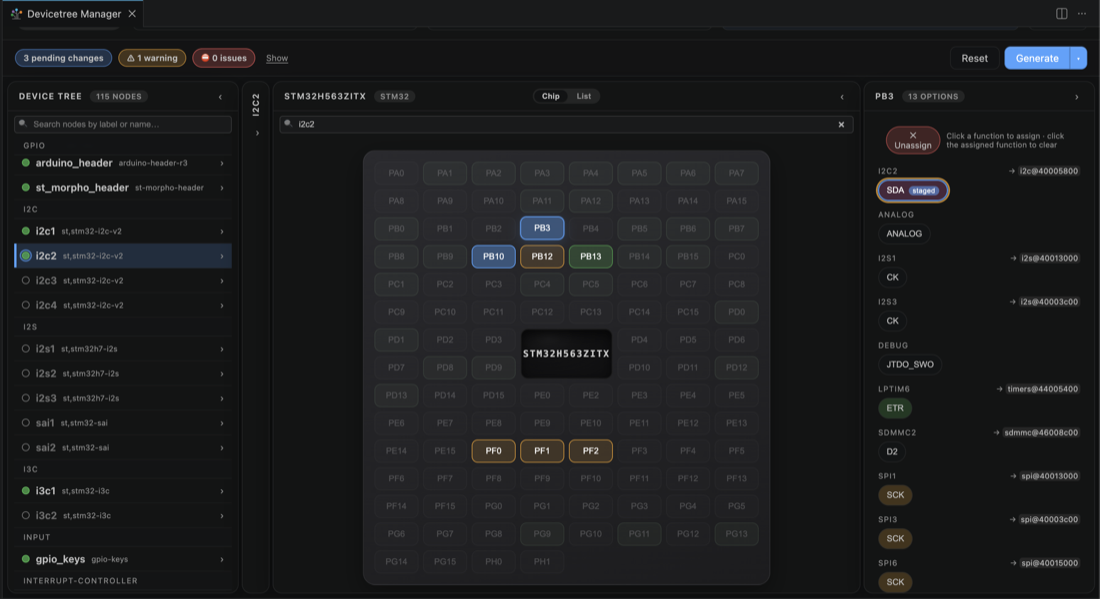
5. Generate the overlay
Click Generate to write the changes to boards/<board>.overlay in the application folder, then rebuild.
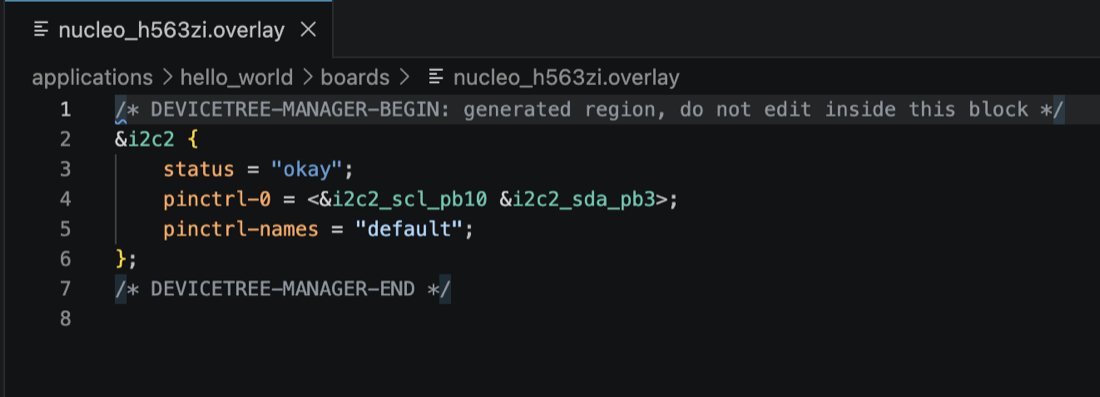
The generated block is delimited by DEVICETREE-MANAGER-BEGIN and DEVICETREE-MANAGER-END markers; keep any manual edits outside it.
-
See also: Devicetree Manager for Zephyr, Configure a USART with the Devicetree Manager, Configure a SPI peripheral with the Devicetree Manager, Configure an ADC channel with the Devicetree Manager.