
Configure an ADC channel with the Devicetree Manager
This tutorial adds an ADC channel on an STM32 board with the Devicetree Manager for Zephyr. An ADC is configured a little differently from a serial peripheral: you add a channel and assign its input pin. The example uses adc2 on a Nucleo H563ZI; the flow is the same on any STM32 board.
Before you start
Install and open the Devicetree Manager as shown in Installing the Devicetree Manager for Zephyr. If you are new to Zephyr on STM32, start with Getting started with Workbench for Zephyr.
1. Select the ADC
Build your application once, open the Devicetree Manager, and select the ADC in the device tree, here adc2. It is usually already okay, and it has a Channels tab next to Properties.

2. Add a channel
Open the Channels tab and click Add channel.
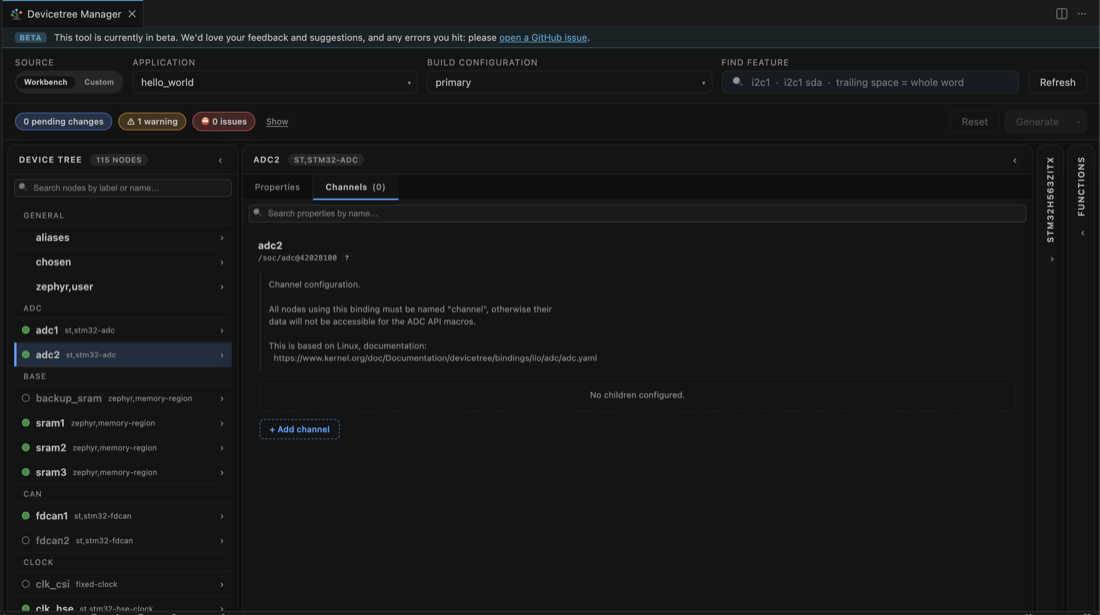
Set the channel properties: the reg (channel number), zephyr,acquisition-time, zephyr,gain and zephyr,reference. Here the channel number is 6.

3. Assign the input pin
Switch to the Chip view and find the ADC input, here by searching adc2 inp6. The matching pad lights up, here PF14.
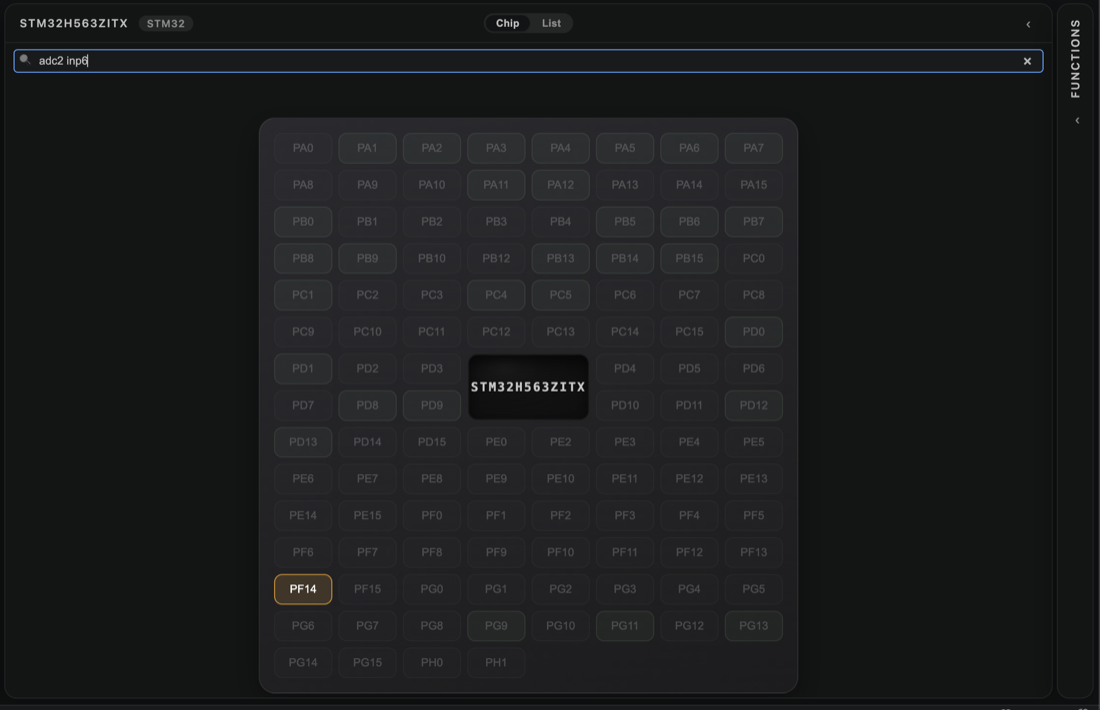
Click the pad and pick the ADC2 INP6 function.

4. Generate the overlay
Click Generate to write boards/<board>.overlay. The generated block contains both the pin assignment and the channel node. Rebuild to apply it.

-
See also: Devicetree Manager for Zephyr, Configure an I2C peripheral with the Devicetree Manager, Configure a USART with the Devicetree Manager, Configure a SPI peripheral with the Devicetree Manager.