Installing the Devicetree Manager for Zephyr
The Devicetree Manager for Zephyr ships as a Visual Studio Code extension (Ac6.devicetree-manager-for-zephyr).
With Workbench for Zephyr
It is part of the Workbench extension pack, so it installs automatically alongside Workbench for Zephyr. If you already use Workbench for Zephyr, you have it.
On its own
You can also install it by itself from the Visual Studio Marketplace or from Open VSX, so it works in VSCodium and other editors built on VS Code.
The manager reads the resolved devicetree from a build directory, so it does not require a Workbench application. If your Zephyr build lives elsewhere, open the manager, switch the Source toggle from "Workbench" to Custom, and point the Build directory field at the folder that contains build_info.yml (the Zephyr build output). You can wire this into your own workflow with a build task, so the build directory is always current before you open the manager.
Opening the Devicetree Manager
Once it is installed, you open the Devicetree Manager from Workbench for Zephyr. Click the Workbench for Zephyr icon in the VS Code Activity Bar (the left side bar) to open its view, then choose Devicetree Manager in the shortcuts list at the top. This is the way in even if you do not otherwise use Workbench for Zephyr.
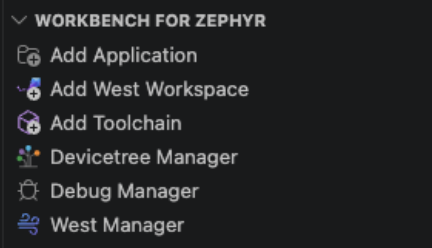
There are two more ways to open it:
- From the command palette, run Zephyr Workbench: Devicetree Manager.
- From the DT Manager status bar item, next to Build and Debug. It appears automatically when the active editor is a devicetree file (.dts, .dtsi or .overlay) that belongs to a Zephyr application, and opens the manager on that application.
When it opens, pick the target in the editor header: the Application and one of its Build Configurations (or switch Source to Custom and point at a build directory, as above).
Before you use it
Build your application at least once so the resolved devicetree exists, then follow one of the peripheral tutorials, for example Configure an I2C peripheral with the Devicetree Manager.